
How can I change the language of the system or my ebooks?
Changing the language of the system or your ebooks in SonicBook is quick and easy. Here's how to customize your experience to suit your language needs.
1. Change system language
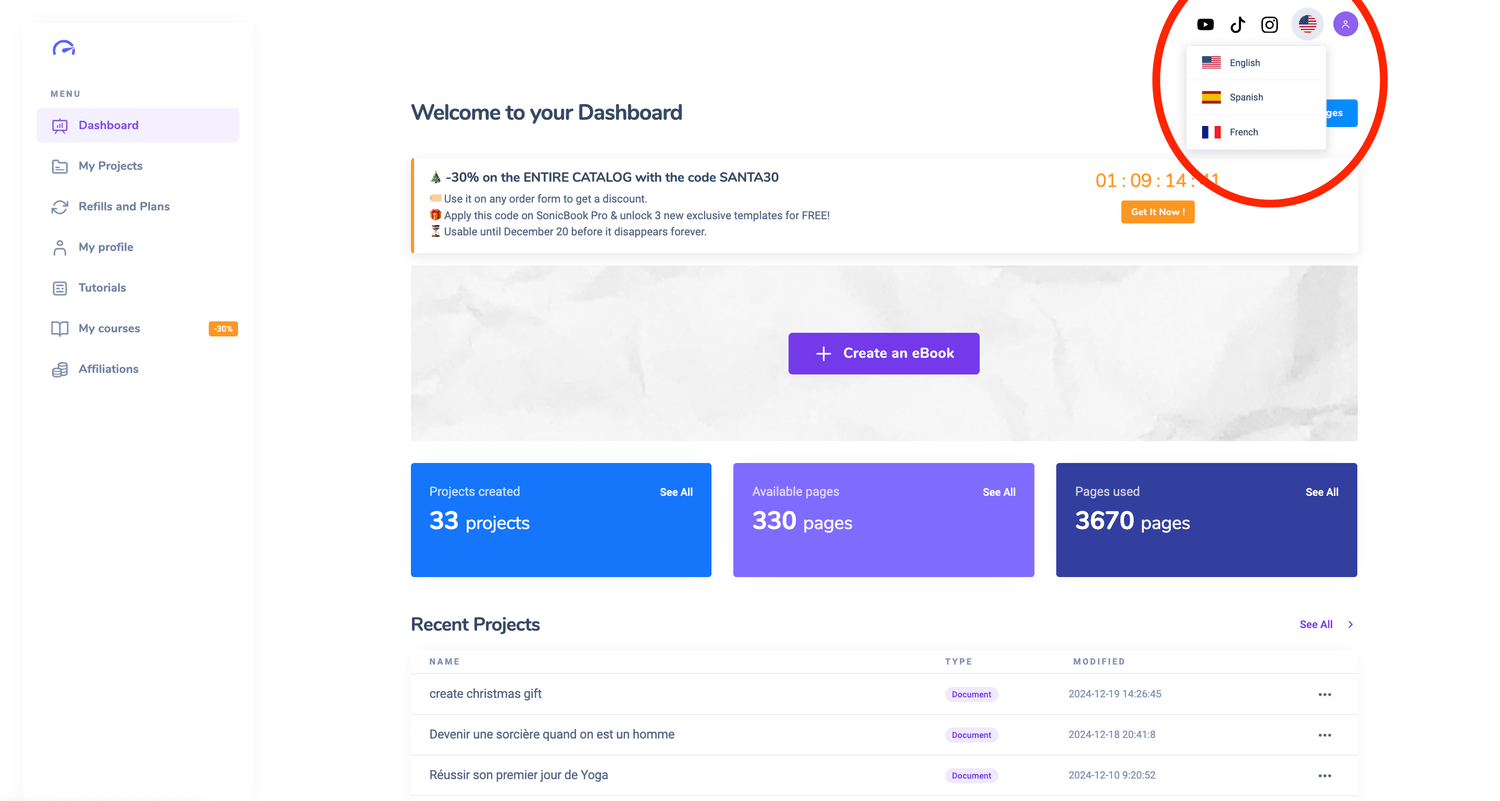
The system language determines how SonicBook menus and options are displayed. To change it :
Access your dashboard:
Log in to your SonicBook account.
Click on the flag icon:
You'll find the icon at the top right of your dashboard.
Select your language from the drop-down list.
Your interface will immediately adapt to your chosen language.
2. Change the language of your ebooks
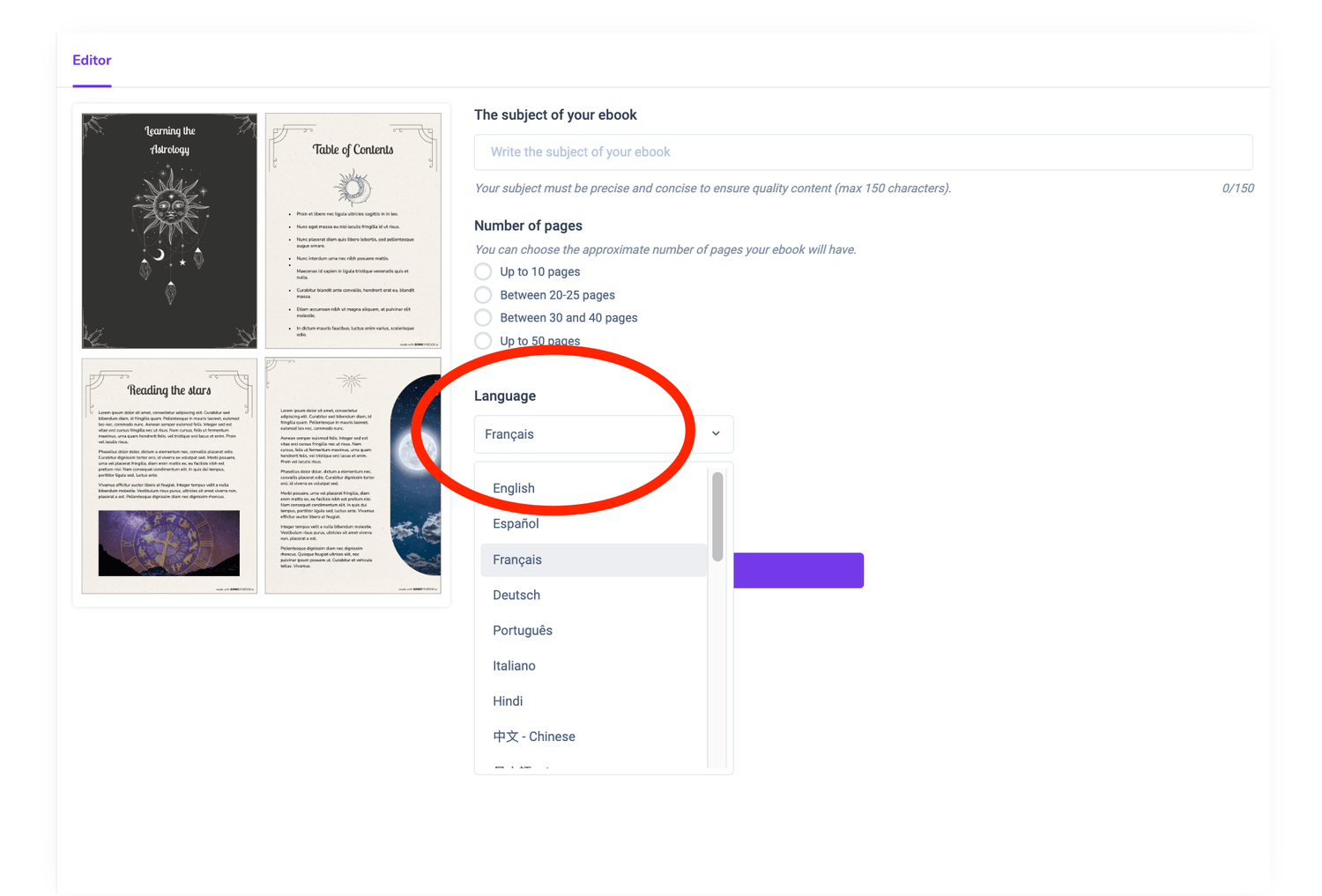
The language of your ebooks can be defined at the time of creation. Here's how to do it:
Launch ebook creation:
Choose your source (sentence, YouTube video, article).
Select your language:
Before generating the book, choose the language from the dedicated drop-down menu.
Generate your ebook:
The content will be automatically translated or adapted to the selected language.
3. Frequently asked question
Can I change the language of an existing ebook?
No, the language must be defined at the time of creation. To change the language, simply recreate the ebook, choosing the new language.